Live view and history
During an event, the operations room follows every TAK app on a map in the browser. If the event records its traffic, the same picture can be replayed afterwards. Open both from the event's header: Live TAK and History.
Live view
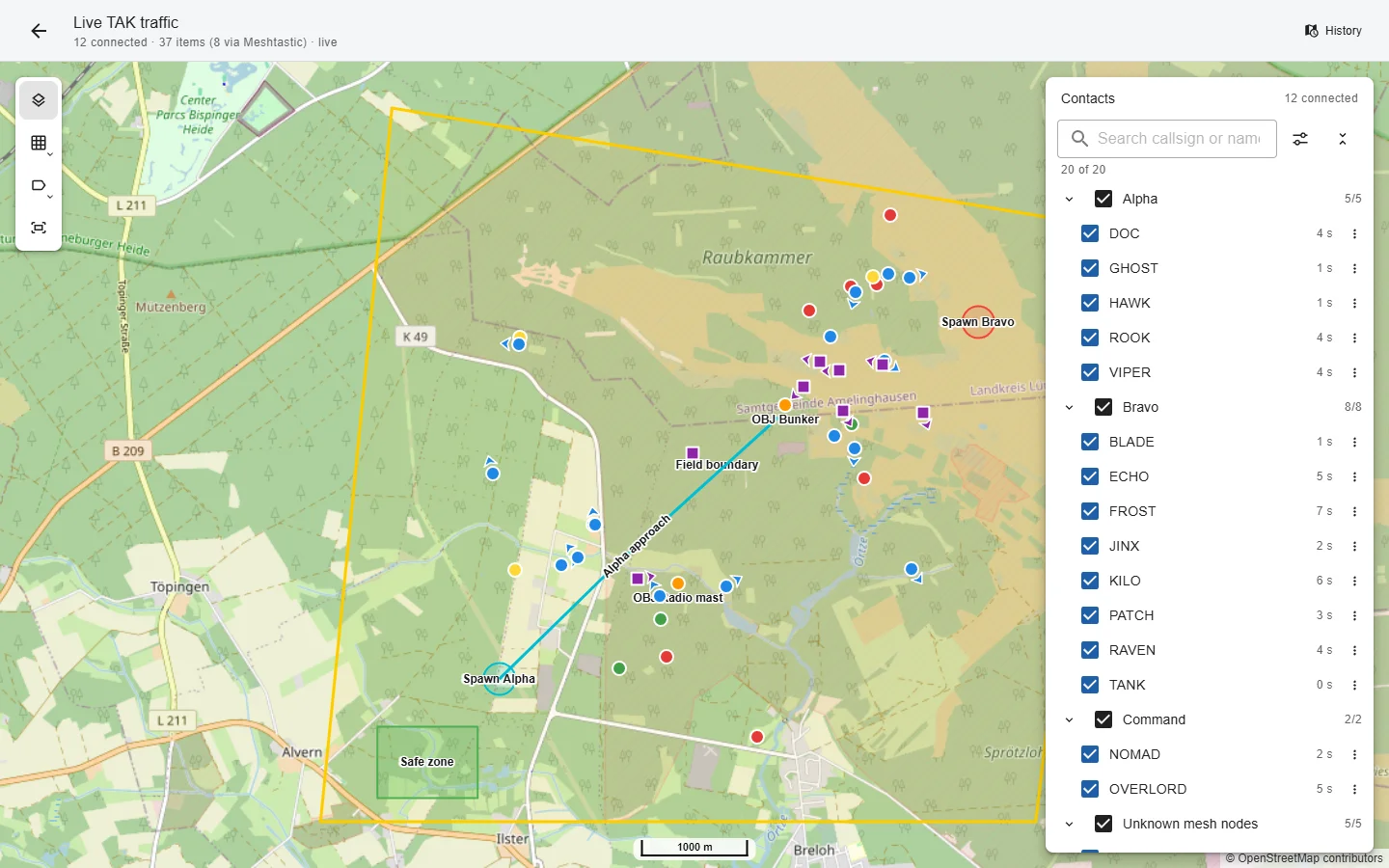
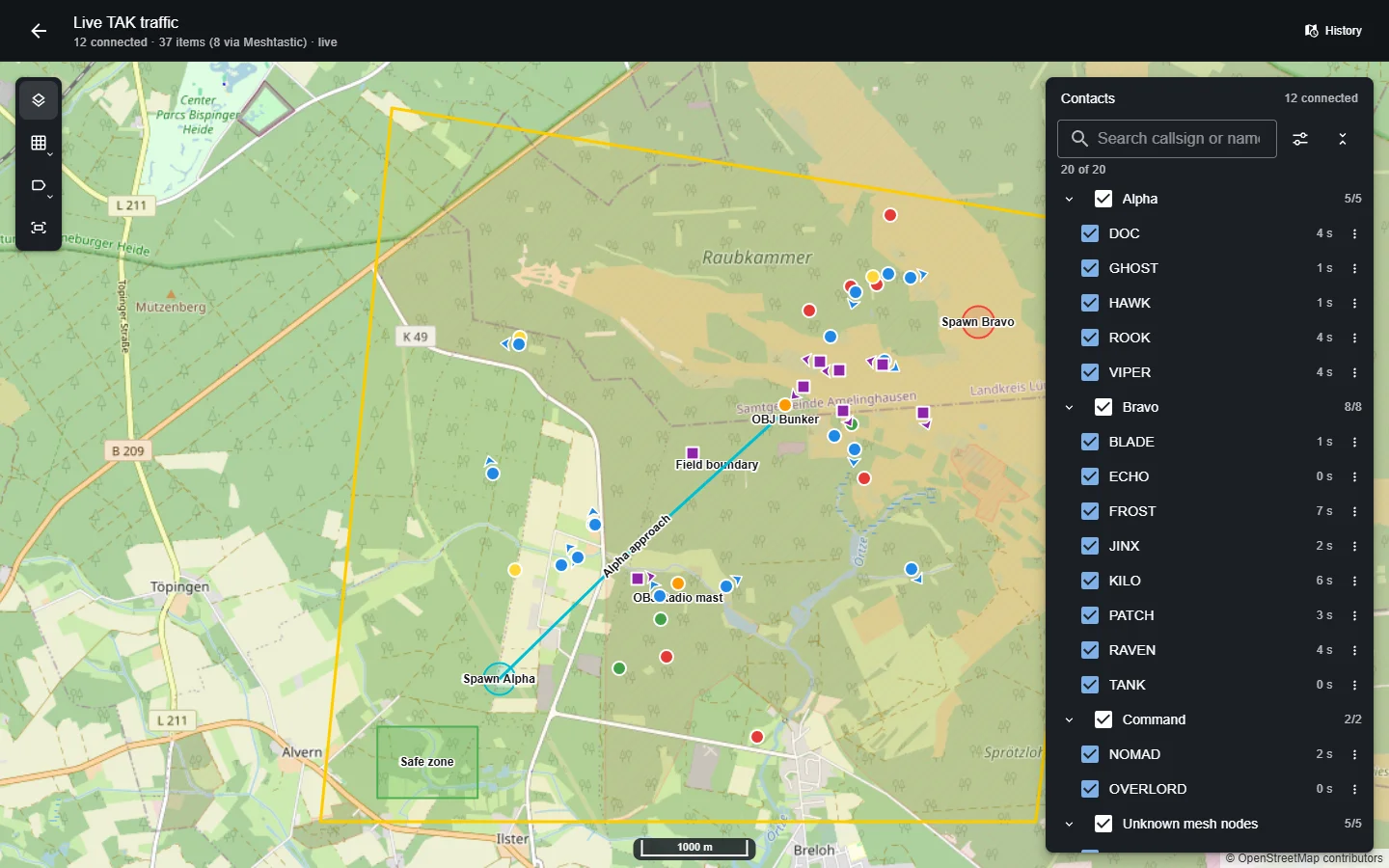
The live map shows the event's map data, the current position of every connected app and the markers participants placed. Positions refresh by themselves; an arrow shows where someone is heading.
The panel on the right lists the connected apps:
- grouped by event group, each group can be folded away;
- the search finds a callsign or a person's name;
- the filter shows only apps heard from recently, apps not heard from for two minutes (their age turns orange) or apps without a position yet, and sorts by name or by when they were last heard;
- the check boxes hide an app or a whole group from the map, for example to look at one platoon; and
- selecting an app centres the map on it.
Overlapping names on the map are hidden until you zoom in; the markers themselves always stay visible.
The live view is not recorded and shows nothing of direct messages between apps. Watching it needs the permission to watch live TAK traffic; see Users and permissions.
Positions forwarded by an Offline HQ appear as squares. A radio bound to a member is listed with that member; other radios are listed under Unknown mesh nodes. The menu of a row shows which HQ heard the radio.
Recording
The history only has data if the event records it. Recording is off by default, because positions are personal data. Switch it on in the event's Settings tab and choose how many days to keep the data; see Data and privacy.
Only positions and markers are recorded, at most one position per app every five seconds.
History
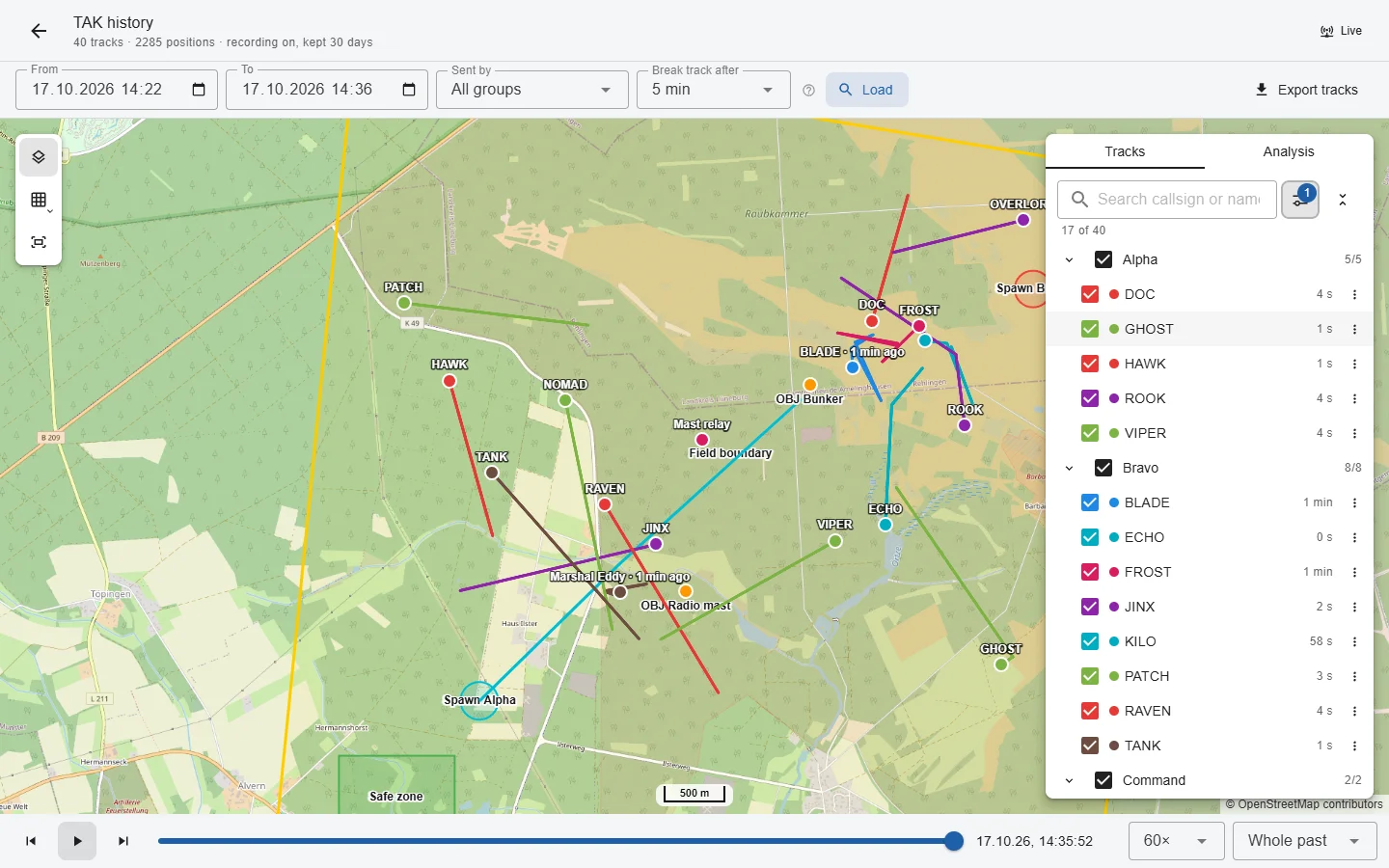
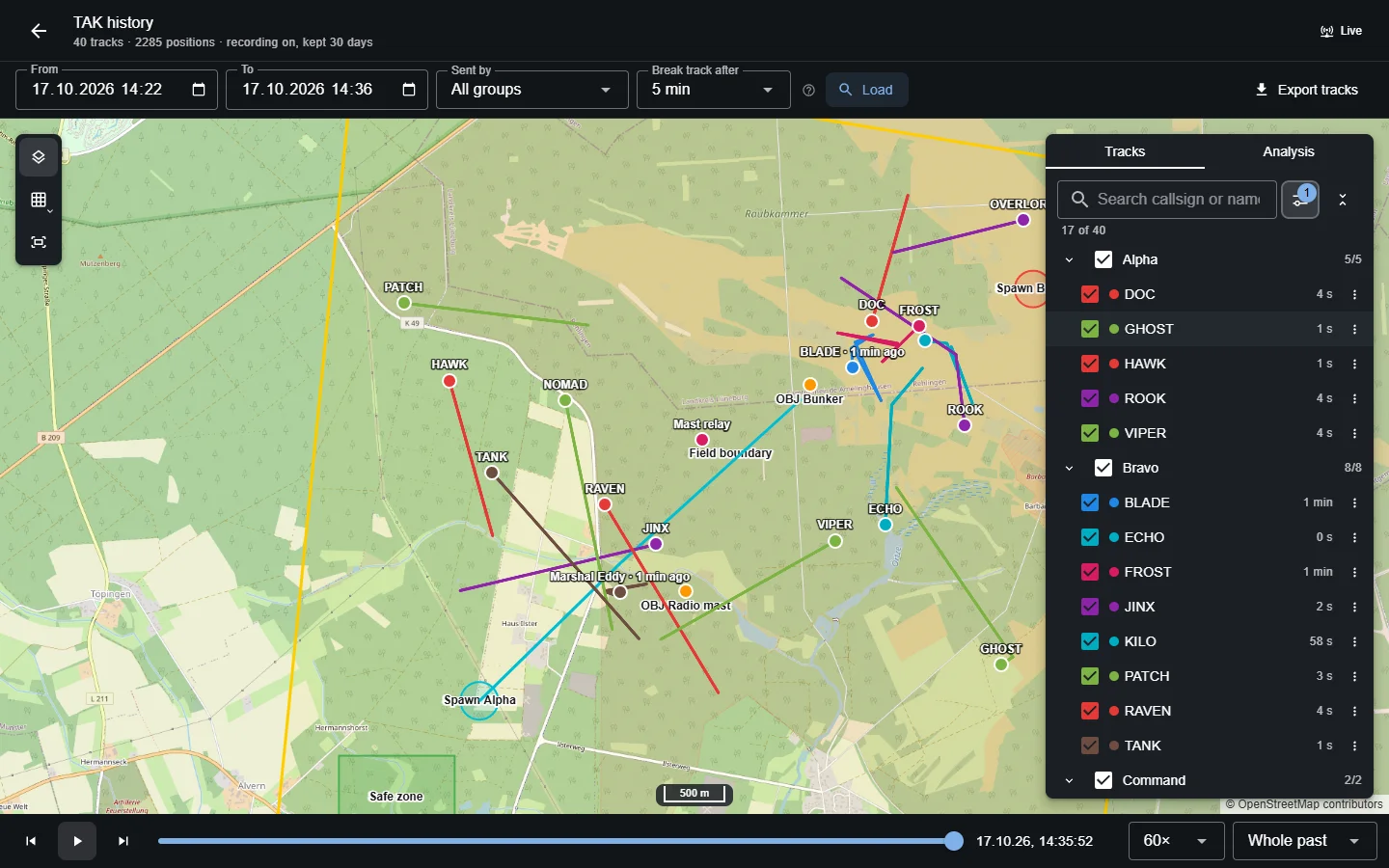
History replays the recorded positions on the event map.
- Choose the time range and, if you like, one group, then Load.
- Use the timeline at the bottom: drag it, or play with a speed of up to 1800×. Trail shows the whole past or only the last minutes behind each position.
- The panel on the right works like in the live view; its filter also tells devices apart from markers someone placed.
How a track is drawn tells you how reliable it is:
| On the map | Meaning |
|---|---|
| Solid line | Positions from the device's GPS, one after the other. |
| Dashed line | The app marked its position as estimated, for example WinTAK on a computer without GPS. |
| Circle | A position with an accuracy of 100 m or worse, for example from a Meshtastic radio with reduced precision. The circle is the stated accuracy; it is never connected to other positions. |
| Gap | No position for longer than Break track after, or a jump too fast to be real. |
| Hollow marker | Last known position, not heard from since. |
The Analysis tab shows where people were most of the time and how long they stayed in the event's map areas.
Export tracks downloads the loaded tracks as GeoJSON or GPX. People with the permission can delete the recorded positions of one track from its menu, or of the whole event. Every view, export and deletion is recorded in the audit log.