Users and permissions
Everyone who signs in has a user account. What a user may do comes only from user groups: a new account can do nothing until you add it to one, even with open registration.
User groups
Under User management → User groups, a user group bundles permissions. Each permission applies either to the whole installation or to one event, so you can let someone run their own event without seeing others.
Every action has its own permission. Some typical bundles:
| Who | Permissions |
|---|---|
| Event organiser | the event's settings, roles, groups, members, Data Packages and publishing, for that event |
| Map planner | view and edit Data Packages and missions, for that event |
| Operations room | watch live TAK traffic and view the history, for that event |
| Device helper on site | set up devices for members, for that event |
| Installation administrator | everything, for the whole installation |
User groups are separate from the tactical event groups such as Bravo. Being in event group Bravo never gives anyone administrative access.
Users
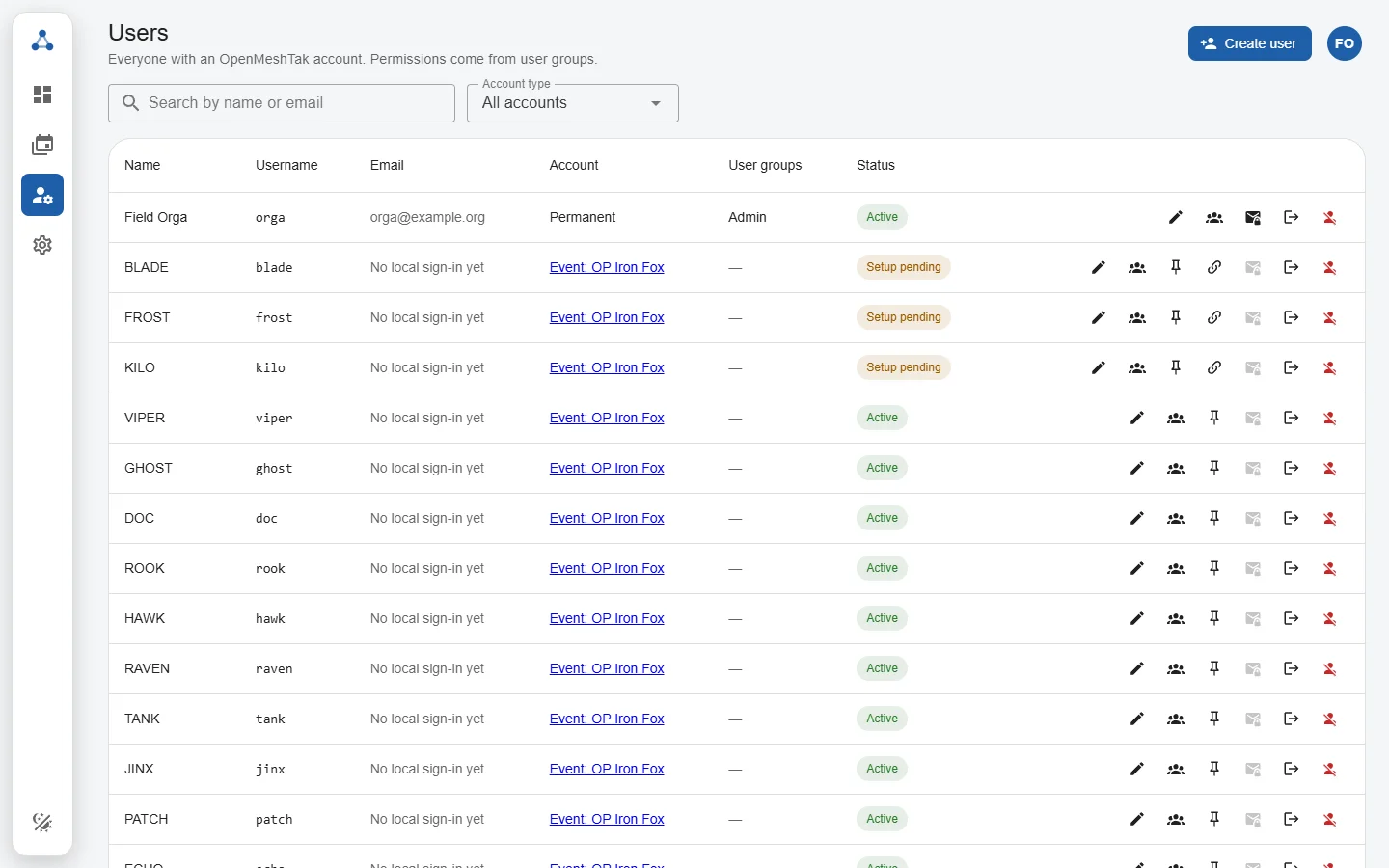
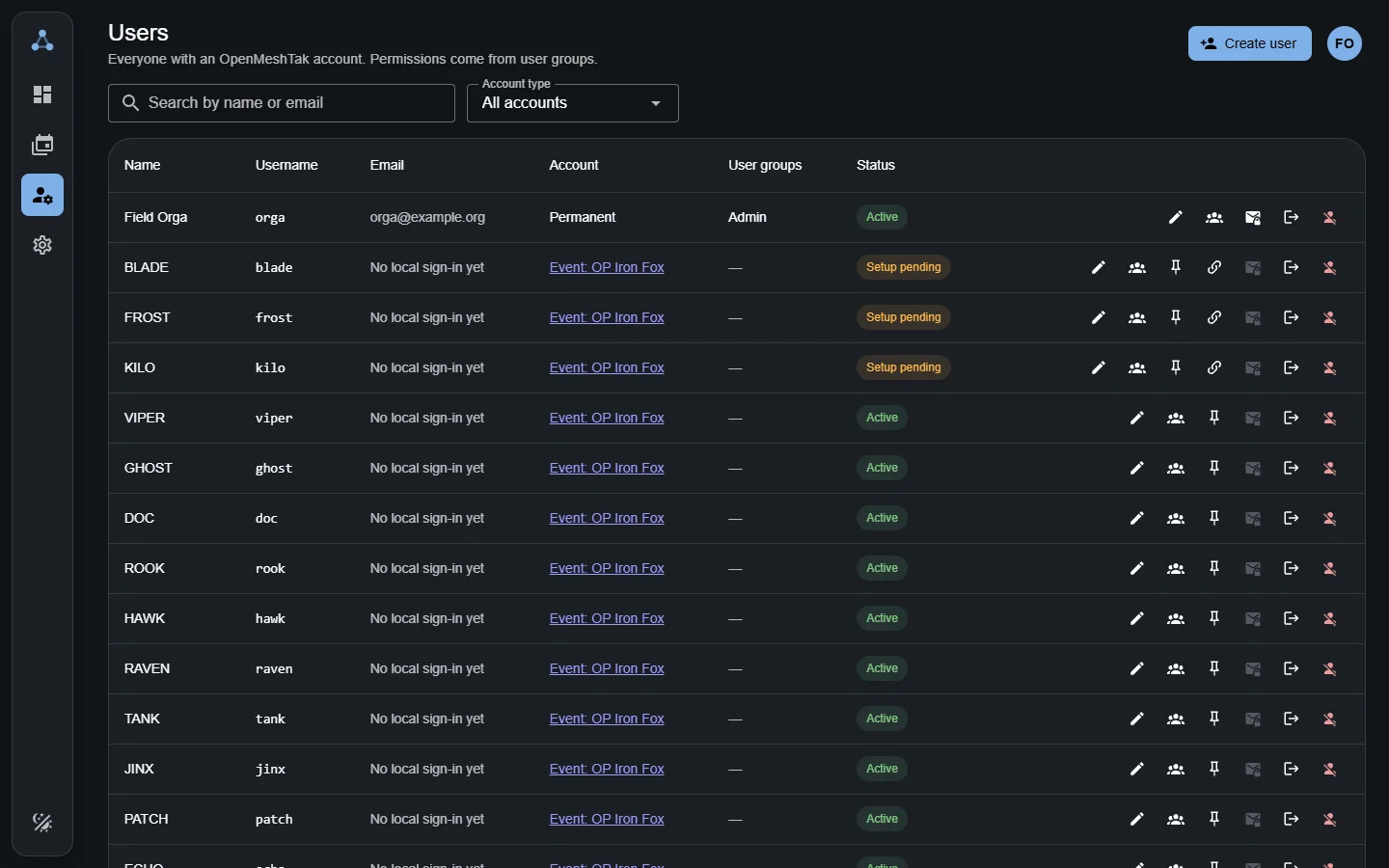
User management → Users lists every account. From a user's menu you can rename them, add them to user groups, send a password reset or a setup link, sign them out everywhere and disable them. A disabled user cannot sign in, and their TAK apps lose access within seconds.
Accounts created for one event (event accounts) are deleted when that event is archived, unless you keep them as permanent users. How people get accounts at all is set under Registration.
TAK apps of a person
Each TAK app has its own certificate. Revoke the app of a lost phone under Settings → TAK server → Enrolled apps; see Configure the installation. Disabling a user or removing them from all events also ends their TAK access.
Integrations
Programs such as a Discord bot do not use a person's account. Create an API client under Settings → API access with only the permissions it needs, and give it an API key; see API basics.